
Learn About The MeetScript Chrome Extension
The MeetScript Chrome Extension captures your Google Meet calls directly from your browser — no bot joins your call, no one on the other end knows it’s running. This guide walks you through installation, settings, and how to use each feature.
Prerequisites
Before you start using the MeetScript Chrome Extension, make sure you’ve got the basics covered:
- You’ve installed and enabled the MeetScript Chrome Extension from the Chrome Web Store.
- A MeetScript account — sign in at meetscript.io with your Google account
How to install the MeetScript Chrome Extension
Step 1: Open the Chrome Web Store, search for MeetScript, and click Add to Chrome.
Step 2: Click Add extension when prompted to confirm the installation.
Step 3: Click the Extensions icon in the top-right of your Chrome toolbar, find MeetScript, and click the pin icon to keep it visible for quick access.
Step 4: Click the MeetScript icon in your Chrome toolbar and click Continue with Google to sign in to your MeetScript account.
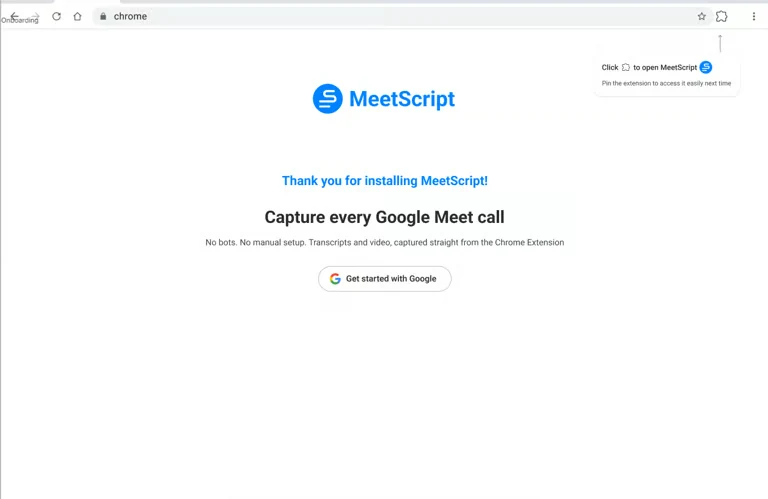
Step 5: Review and grant the required permissions — microphone access and screen capture are needed to record your calls.
Step 6: You’re in. MeetScript is ready to capture your next Google Meet call.
How to use the MeetScript Chrome Extension
1. Transcribe your Google Meet call automatically
MeetScript transcribes your call in real time — no setup required beyond joining the meeting.
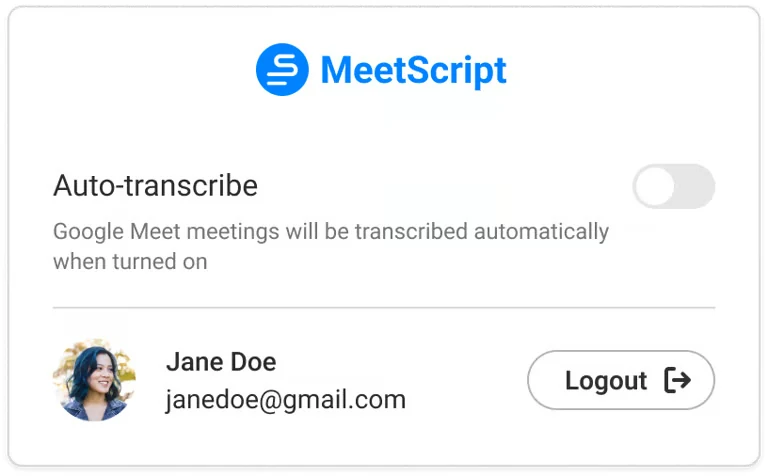
When Auto-transcribe is ON:
- Join your Google Meet call as usual
- MeetScript detects the meeting and starts transcribing automatically
- A live transcript is available in your MeetScript dashboard as the call progresses
When Auto-transcribe is OFF:
- Join your Google Meet call
- Click the MeetScript icon in your toolbar
- Enable Transcribe meeting to begin manually
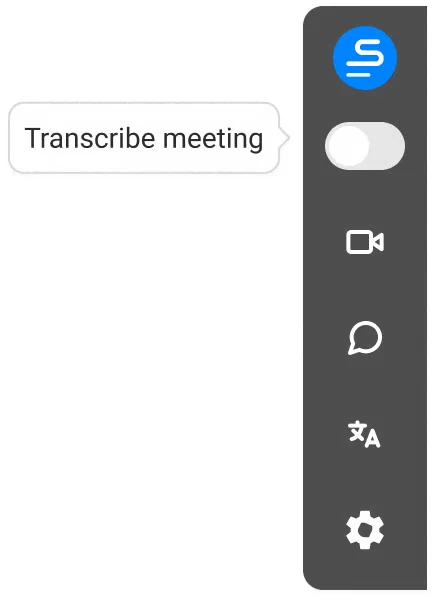
2. Record your meeting with one click
MeetScript captures both screen and audio — video recording is included on all plans.
- Join your Google Meet call
- Click Start recording from the extension
- MeetScript records your screen, participant audio, and your microphone simultaneously

You can transcribe without recording, or do both at the same time. They are independent — turning one on does not require the other.
3. Pause transcription for off-the-record moments
If you need a moment that isn’t captured:
- Click Stop transcribing in the extension during your call
- The transcript stops at that point — nothing said while paused is captured
- Click Transcribe meeting to continue transcription from where you left off
4. Stop and process your meeting
When your call ends:
- Click End the meeting or close the Google Meet tab
- MeetScript processes your recording and transcript automatically
- Your meeting appears in your dashboard within a few minutes, ready for AI summaries and key topics
What’s waiting in your dashboard after the call
Once processing is complete, open your MeetScript dashboard to find:
- Transcript — full, speaker-labeled transcript with timestamps
- Recording — video playback, speech control, full screen, theater mode
- AI summary — generate highlights, decisions, follow-ups, and action items on demand
- Key topics — AI-grouped themes discussed in the meeting
- Ask AI — ask questions in natural language and get answers with citations